This article describes interface and functionality of Resource Explorer, which allows to list and browse all data assets in a project active work zone (scans, models, 360 images, asset tags and site maps).
Watch tutorial video: Resource Explorer.
TABLE OF CONTENTS
Interface
Select Resource Explorer on the vertical Explorer Toolbar on the left-hand side of the screen.


This will open Resource Explorer on the left-hand-side.
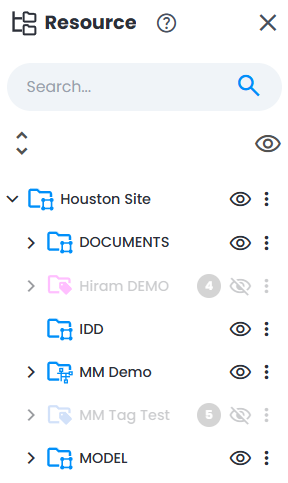
Resource Explorer allows to browse, search, select or unselect each of the project resources: work zones, scans, models, 360 images, IDD files and site maps.
Search
The following attributes can be searched in Resource Explorer:
- work zone name
- file name
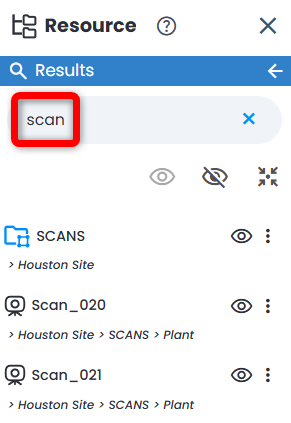
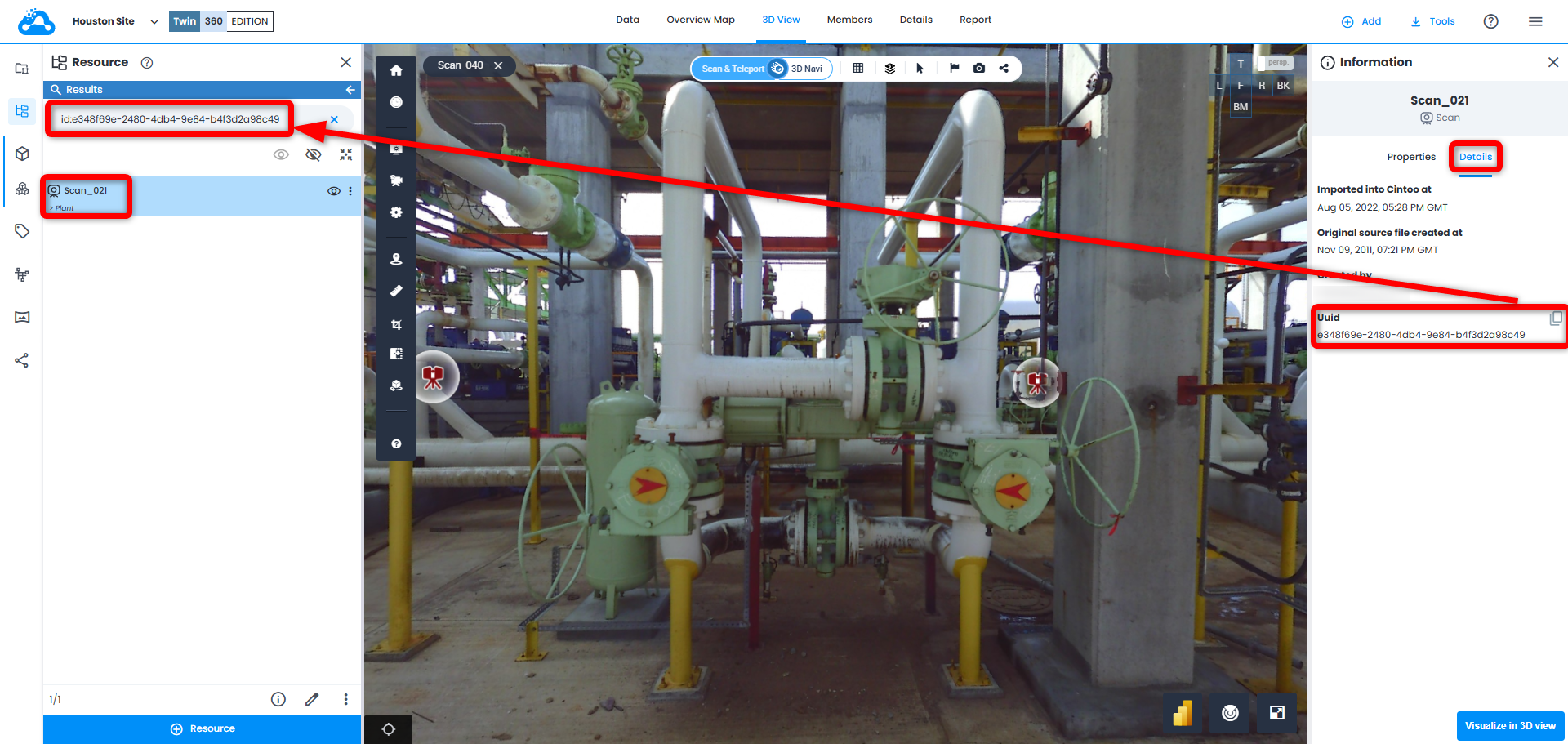
- adding a prefix "id:" UUID of the file allows to perform an exact search by id.
- narrowing down search results to find the exact name of the file is done by adding a prefix "label:" and putting the name of the file searched in brackets "example". Please note that this search is case sensitive.

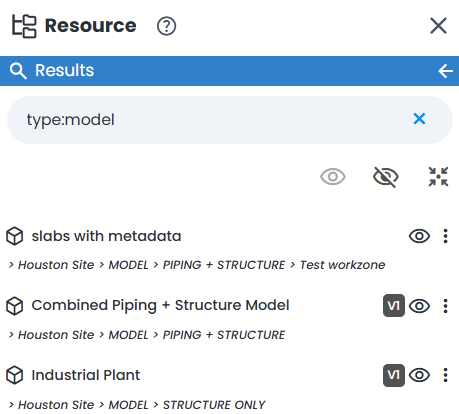
- adding a prefix "type:" allows to search for a specific type of data. Supported keywords are scan, model, workzone, sitemap, taglist, geoimage (360 images and IDD objects).
- special case when a character " is in the middle of the name of the file. To correctly process it by the search mechanism, add "\" character before the " character. For example, initial filename is scan"example, then enter scan\"example to correctly search:

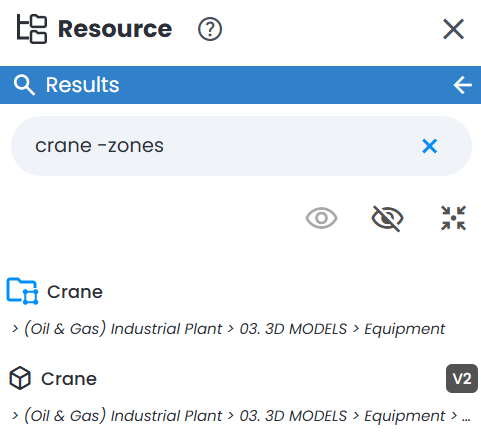
- adding prefix "-" before term excludes it from search results - for example, searching "-pump" shows everything except files whose name contains "pump". Can be combined with normal search term in same search box to include one word and exclude another at same time - for example, searching "valve -pump" finds files that contain "valve" but not "pump".
Actions
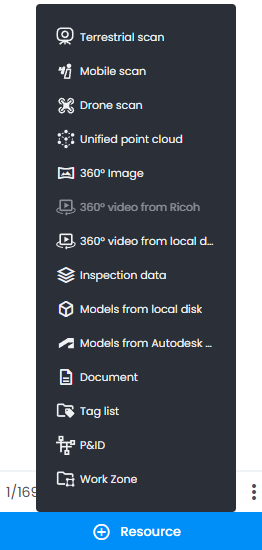
Add button at the very bottom of Resource Explorer is equivalent to Add menu at the top right of the screen and allows to import any type of data into the work zone selected in Work Zone Explorer, including 360° video from Ricoh and 360° video from local disk.
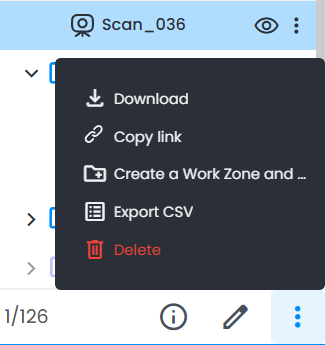
Resource Explorer lists several possible Actions related to selected resource(s). Those actions are similar to the available actions in the Data tab for a selected resource type.
For example, related to selecting a scan file:
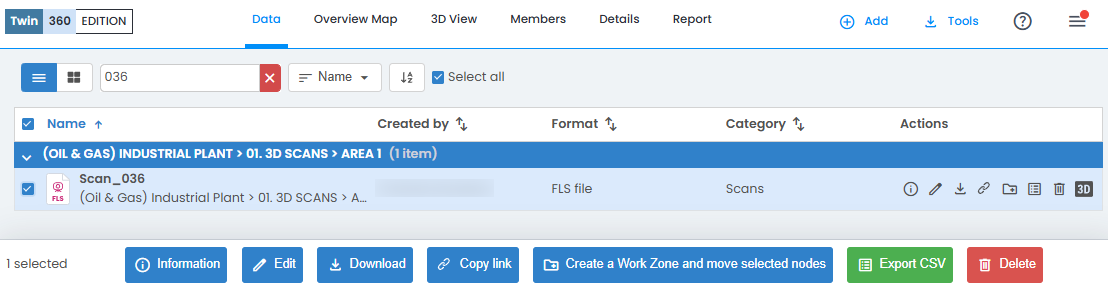
- Possible actions in Data tab.
- Actions available via Resource Explorer for the same scan - Information, Edit (file name only), Download, Copy link, Create a Work Zone and move selected nodes, Export CSV and Delete.
- When selecting one or several resources such as scans or models (use Shift or Ctrl to select several), it's possible to Create a Work Zone and move selected nodes (resources) into this work zone.
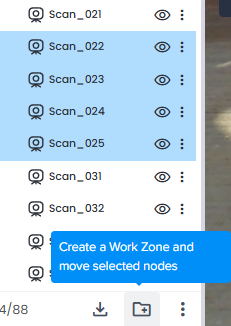
Create a Work Zone and move selected nodes panel opens on the right: define Name, optionally a Description, and click Create.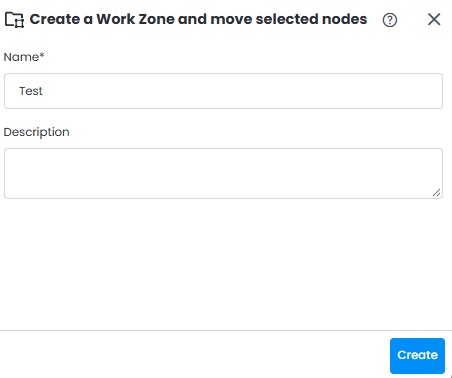
Navigation
Right-clicking or using 3 dot menu on a resource in Resource Explorer gives access to navigation actions:
- Focus in scan mode - switches 3D View to scan mode and focuses camera on selected resource. Available for scans, 360 images and inspection data.
- Focus in 3D Navi - switches 3D View to 3D Navi mode and moves camera close to selected resource. Available for every resource type, including models and site maps.
Was this article helpful?
That’s Great!
Thank you for your feedback
Sorry! We couldn't be helpful
Thank you for your feedback
Feedback sent
We appreciate your effort and will try to fix the article