This article describes different settings that could be set for 3D View and Overview Map.
In 3D View or Overview Map navigate to the vertical panel on the left to Options.
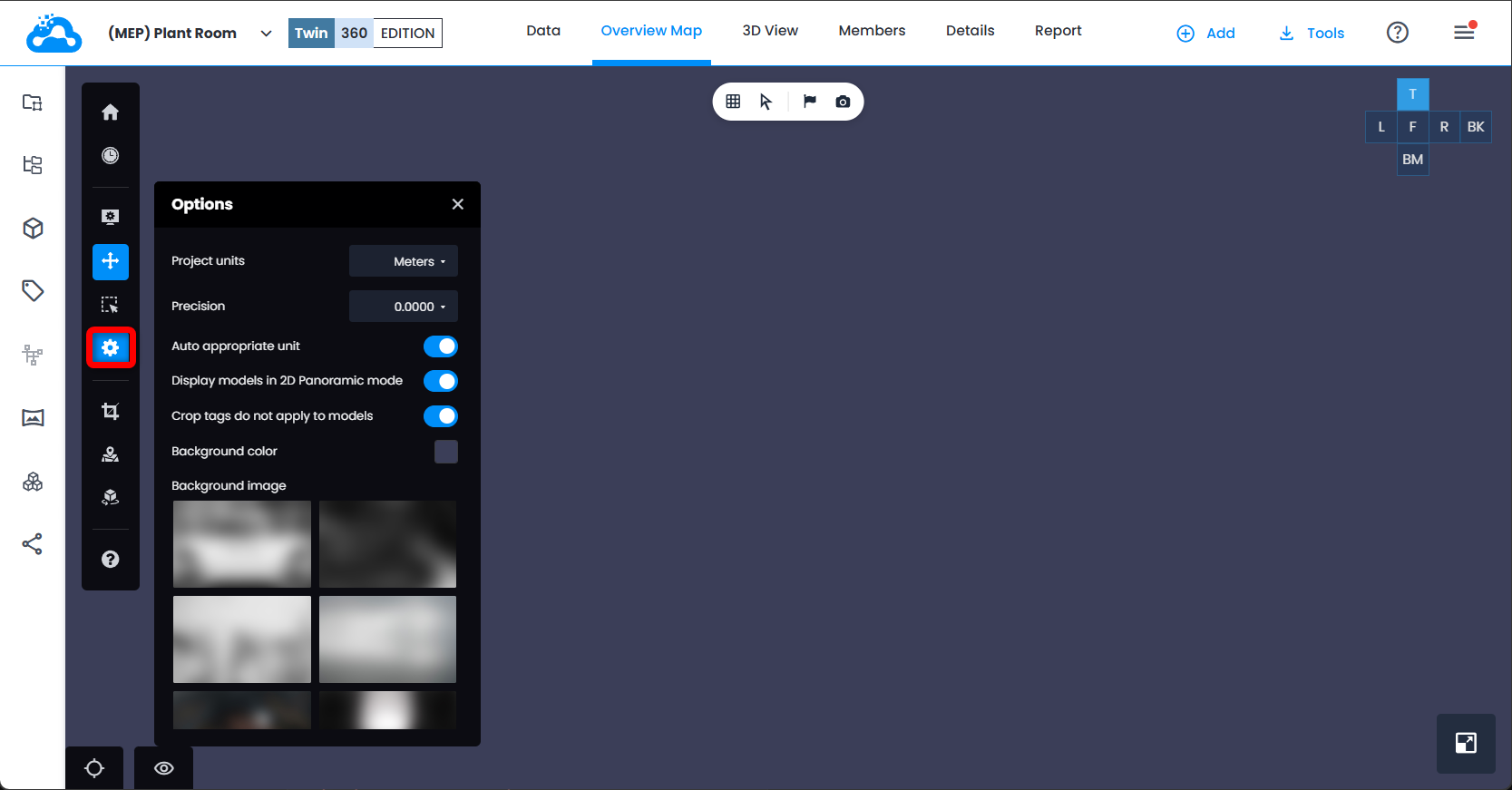
In the opened Options menu there are following settings, that are saved on the user level.
Once a user changes for example to Feet as project units, project units would appear for this user in any project as Feet.
- Project units - define which units would be used for all distances in the project. Concerned elements: Measurements, Progress Monitoring, Coordinates of a point etc.
There are 3 Metric (Millimeters, Centimeters, Meters) options and
3 Imperial (Inches, Feet, Feet and Inches) options.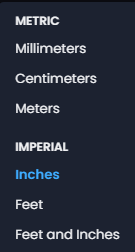
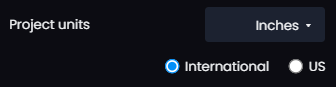
For Imperial units it's also possible to choose whether they would be International or US.
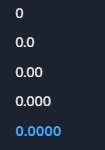
- Precision - defines the number decimal places for any value inside a Cintoo project.
- Auto appropriate unit - lets Cintoo choose which unit within your selected system fits each value best.
A value too small or too large for a selected unit is shown in another unit of same system:
- 0.35 cm becomes 3.5 mm
- 250 cm becomes 2.5000 m.
In metric, number of decimals shifts with unit, so every version expresses same accuracy. In imperial, decimal setting is kept as it is, so a value shown in inches is finer than same value shown in feet. Metric stays metric and imperial stays imperial. Feet and inches is not affected.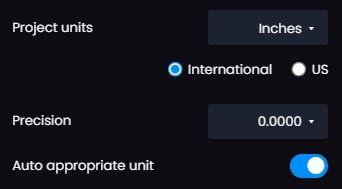
- Display models in 2D Panoramic mode - allows to either show or not the elements of type model while in 2D Panoramic display mode.

- Crop tags do not apply to models - when on, Crop In/ Crop out in Tag Explorer filters scans, 360 videos and Gaussian Splats, while models stay visible. When off, crop tags apply to all data types, models included. Setting is on by default.

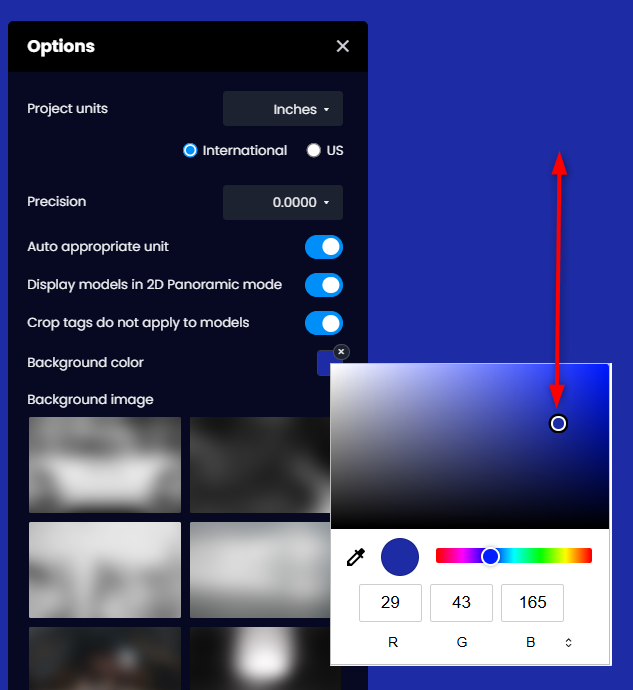
- Background color - allows to change the background color for the data in 3D View and Overview Map. Either navigate manually by colors or type in the HEX color code in the dedicated field.
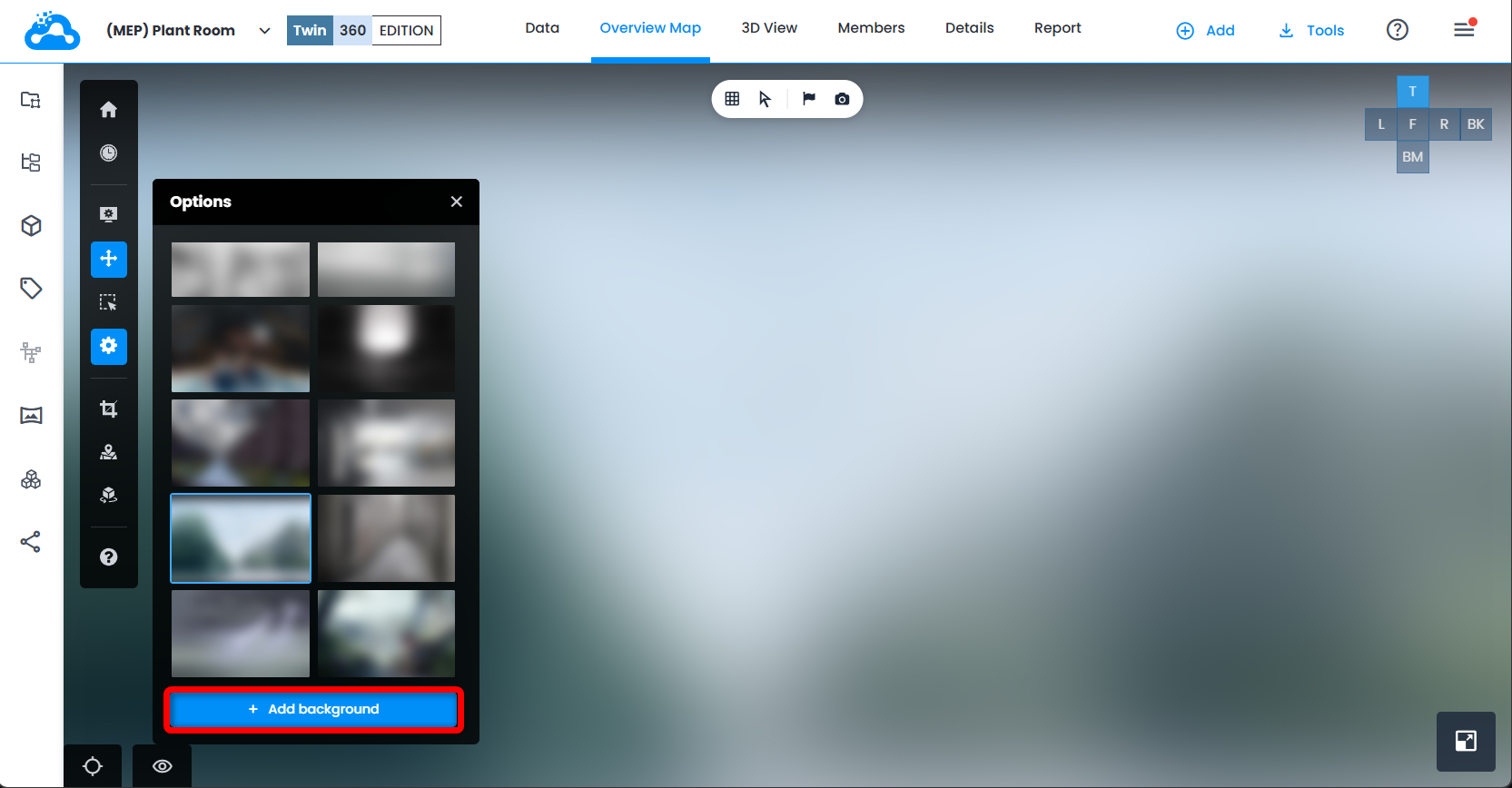
- Background image - allows to set an image as a background. Use either one of the proposed gradient options or import from local storage with Add background.
Was this article helpful?
That’s Great!
Thank you for your feedback
Sorry! We couldn't be helpful
Thank you for your feedback
Feedback sent
We appreciate your effort and will try to fix the article