This article describes interface and functionality of Model Explorer, which allows to list and browse models in the project active work zone.
Users with roles including Work Zones permission can move the model to another work zone.
TABLE OF CONTENTS
Interface
Select Model Explorer icon on vertical Explorer Toolbar on the left-hand side of the screen.


This opens Model Explorer on the left-hand side. Choose a needed model.
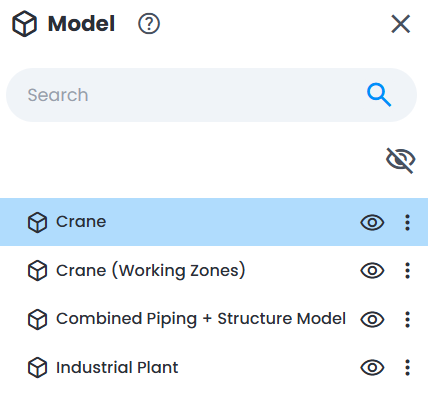
Search
The following attributes can be searched using Model Explorer search tool:
- Model name
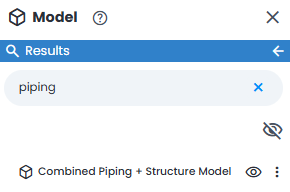
- narrowing down search results to find the exact name of a model is done by adding a prefix "label:" and putting the name of the file searched in brackets "example". Please note that this search is case sensitive.
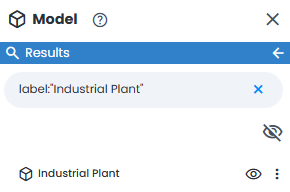
- special case when a character " is in the middle of the name of the file. To correctly process it by search mechanism, add "\" character before the " character. For example, initial filename is model"example, then enter model\"example to correctly search:

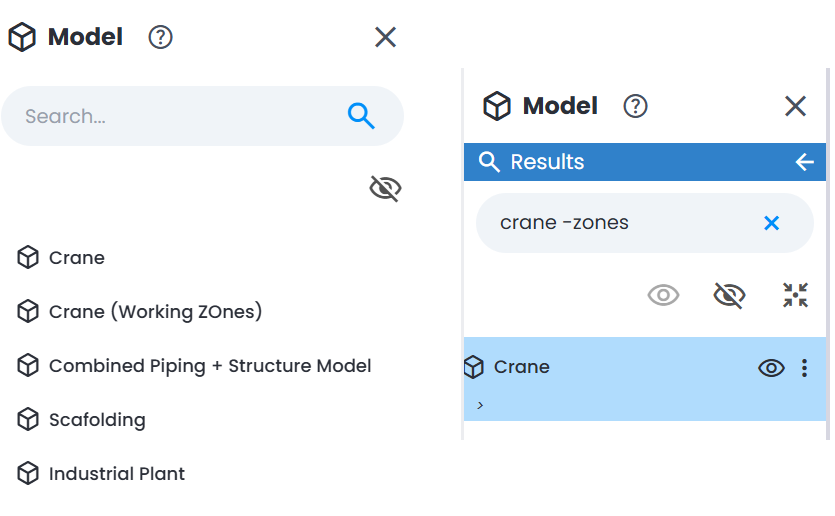
- adding prefix "-" before term excludes it from search results - for example, searching "-pump" shows everything except models whose name contains "pump". Can be combined with normal search term in same search box to include one word and exclude another at same time - for example, searching "valve -pump" finds models that contain "valve" but not "pump".
Actions
Models button at the very bottom of Model Explorer is equivalent to model import options from Add menu at the top right of the screen and allows to import models from either local disk or Autodesk Forma into the work zone selected in Work Zone Explorer.
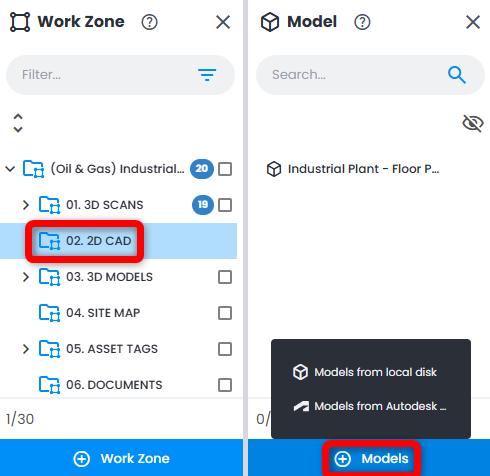
Model Explorer lists several Actions at the bottom, when a model is selected. These actions are related to a selected file and are similar to available actions found in Data tab for a selected model.
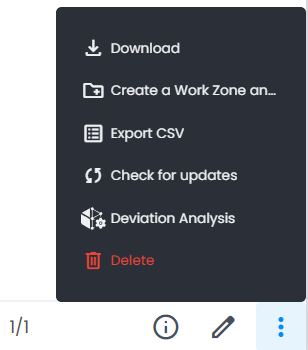
- Information - opens Information panel on the right including all the details about the model
- Edit - model name only
- Download - export model from Cintoo
- Create a work zone and move selected node, Export CSV, Check for updates (if loaded from Autodesk Forma), Progress Monitoring and Delete.
See Information related to the selected model by clicking the 'i' icon.
Information panel appears on the right side and allows to browse Properties and Details.

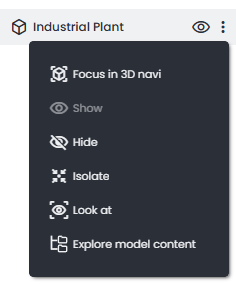
In addition, with a model selected in Model Explorer, tools to the right of the item could be used to hide/show the model. Use right mouse button click or 3 dots to:
- Focus in 3D Navi switches 3D View to 3D Navi mode and zooms to extents of the model
- Show it or Hide it in 3D view
- Isolate it from the rest of the content in 3D view
- Look At turns viewpoint towards the model (no zoom)
- Explore model content opens Model Content Explorer providing model hierarchy, elements and metadata
Was this article helpful?
That’s Great!
Thank you for your feedback
Sorry! We couldn't be helpful
Thank you for your feedback
Feedback sent
We appreciate your effort and will try to fix the article