When downloading and running Cintoo Connect 2.18 installer, Windows may display a security warning indicating that the app is unrecognized.
This warning does not mean the installer is unsafe. Cintoo Connect 2.18 is signed with a new code signing certificate. Windows SmartScreen flags executables signed with a new certificate until enough users have downloaded it - a reputation-building process managed by Microsoft. Once sufficient download history is established, warning will no longer appear for future versions.
TABLE OF CONTENTS
- What the Warning Looks Like
- How to Proceed - Download Warning in Microsoft Edge
- Help Us Remove the Warning Faster
- How to Proceed - SmartScreen Installation Warning
What the Warning Looks Like
You may encounter one of two warnings depending on where the security check is triggered:
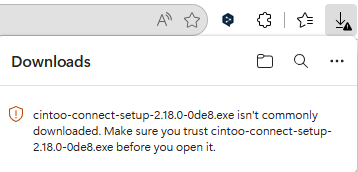
Warning during download (Microsoft Edge) - Edge shows a warning in the Downloads panel and a notification stating the file "isn't commonly downloaded."
Warning during installation (Windows SmartScreen) - Windows blocks the installer from launching with a "Windows protected your PC" dialog.
How to Proceed - Download Warning in Microsoft Edge
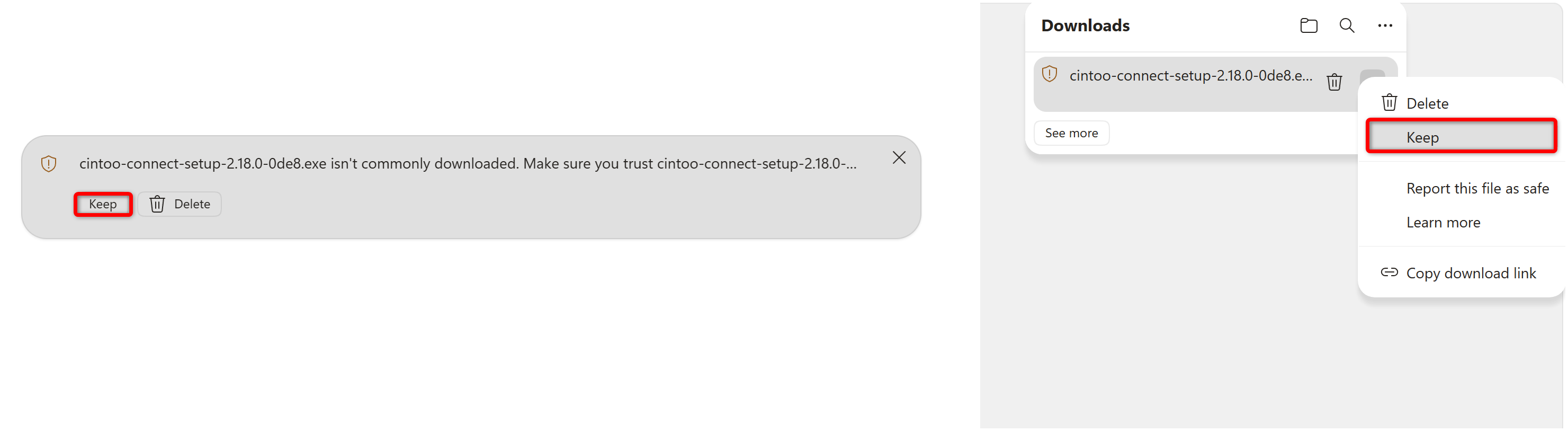
- When download completes, Edge shows a notification: "cintoo-connect-setup-2.18.0-0de8.exe isn't commonly downloaded." Click Keep in the notification, or proceed to the next step.
- In Downloads panel, click the ... (more options) icon next to the file and select Keep from the menu.
- A confirmation dialog appears showing the publisher details (Cintoo SAS). Click the dropdown arrow next to Delete and select Keep anyway.
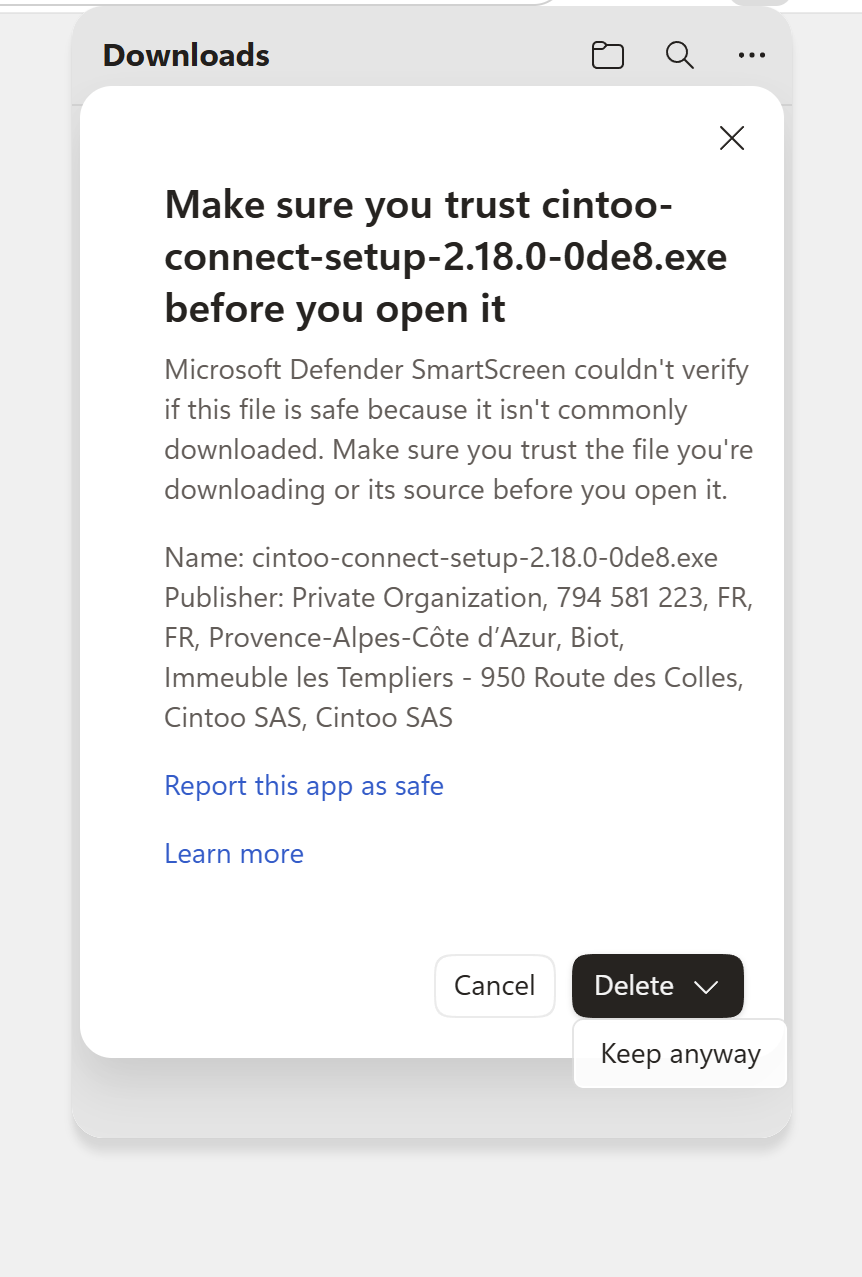
The file is saved to your computer. You can now run the installer.
Help Us Remove the Warning Faster
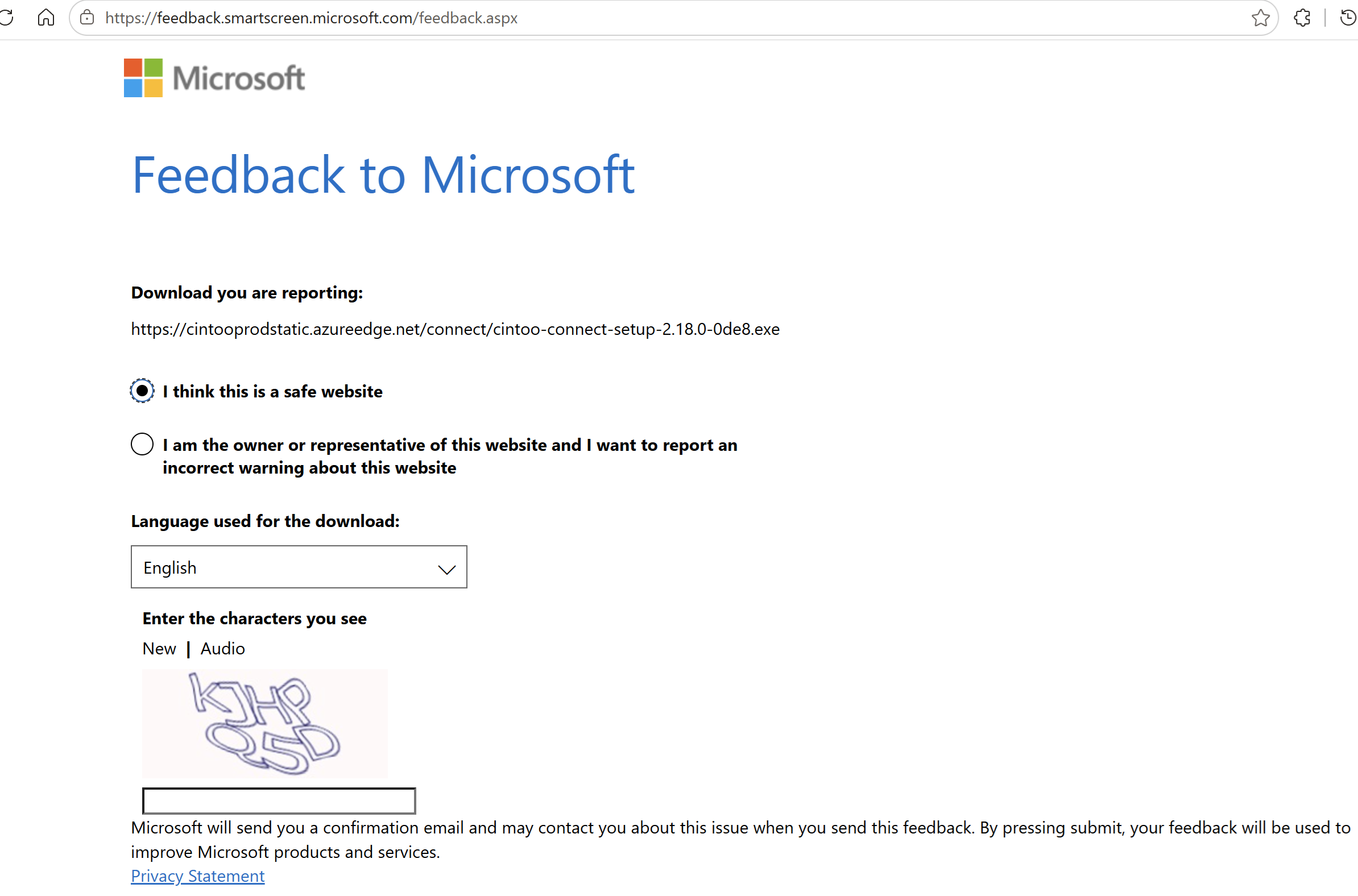
Reporting the installer as safe helps Microsoft build download reputation for Cintoo Connect more quickly, which will remove the warning for all users sooner.
In the Downloads panel, click the ... icon next to the file and select Report this file as safe.
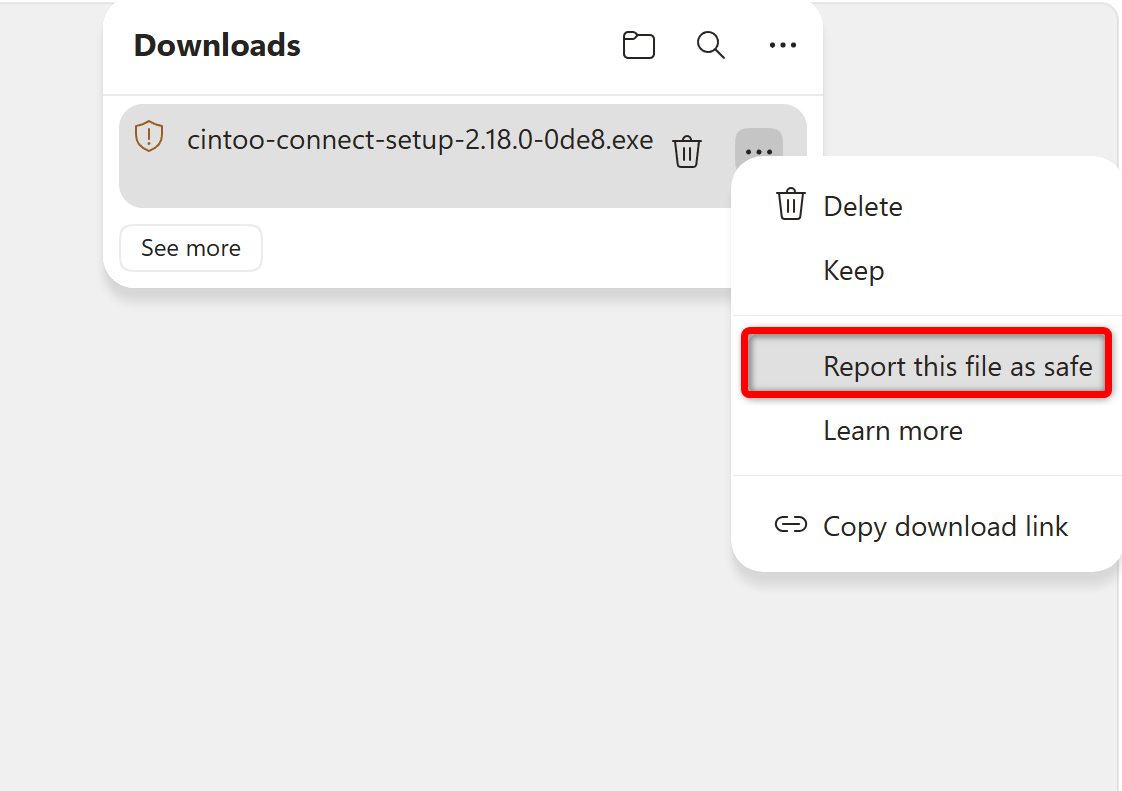
This opens a Microsoft SmartScreen feedback page. Select "I think this is a safe website" and complete the short form to submit.
How to Proceed - SmartScreen Installation Warning
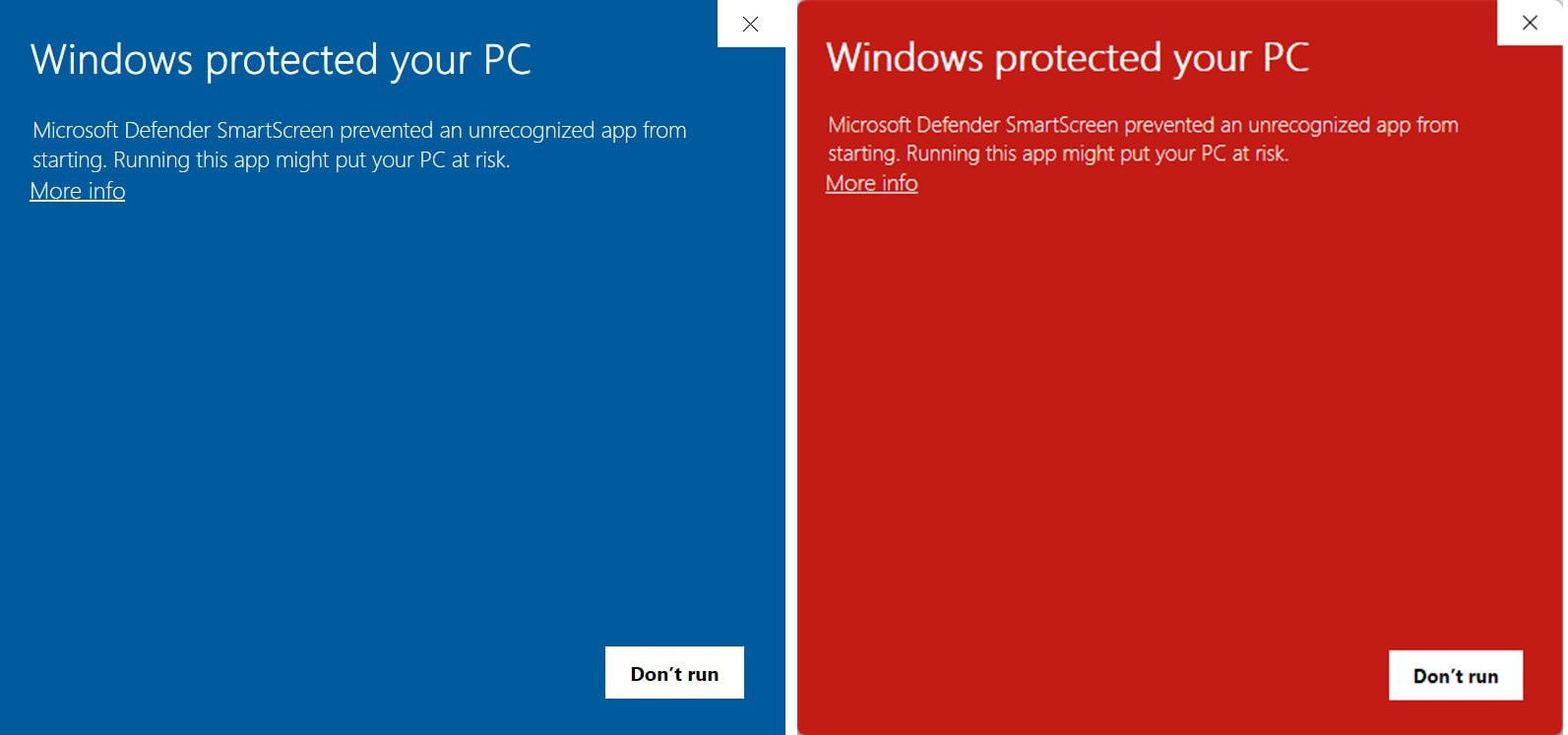
If you see a blue or red "Windows protected your PC" SmartScreen dialog when running the installer:
- Click More info in the SmartScreen dialog.
- Verify the publisher is listed as Cintoo.
- Click Run anyway.
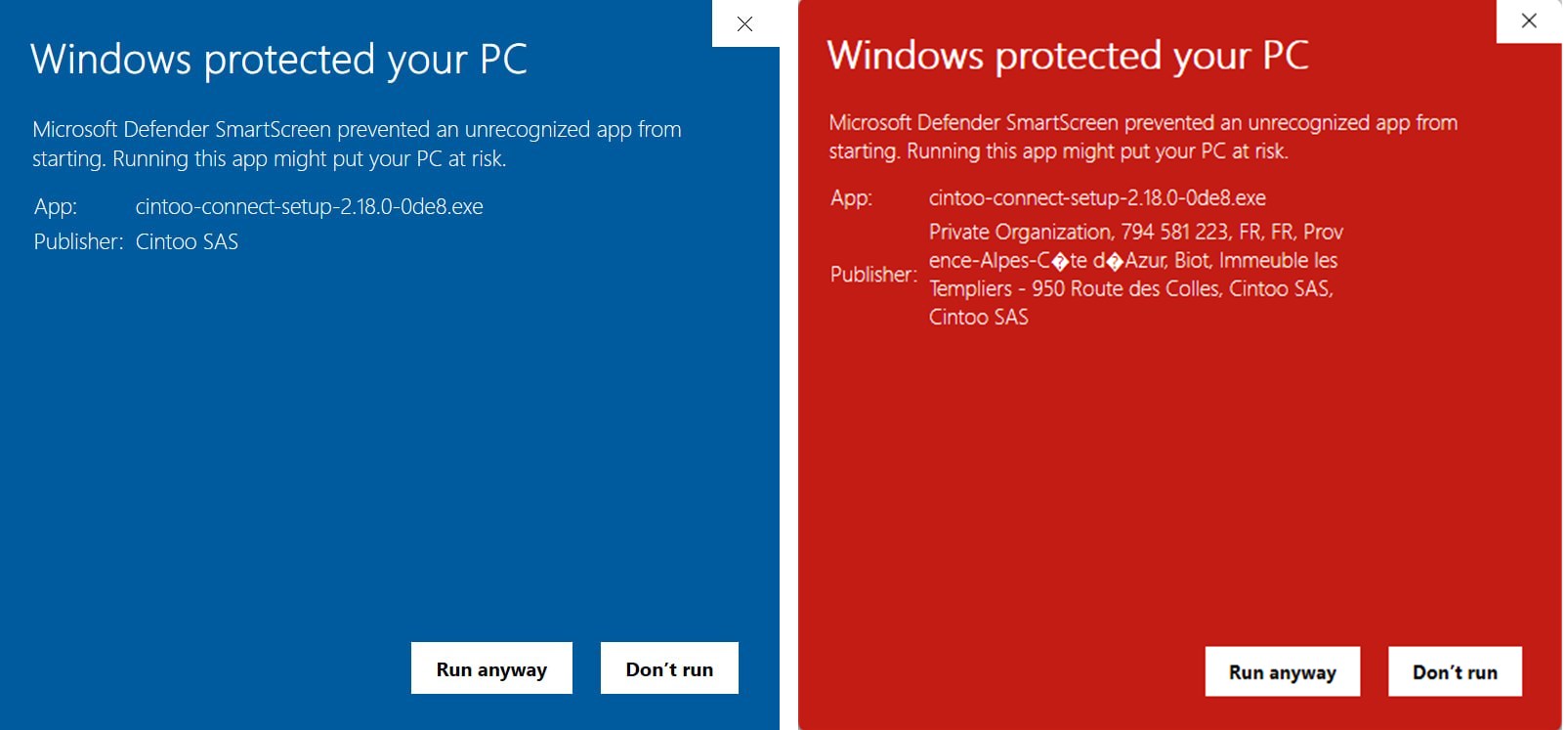
Installation will proceed normally. No administrator rights are required.
Was this article helpful?
That’s Great!
Thank you for your feedback
Sorry! We couldn't be helpful
Thank you for your feedback
Feedback sent
We appreciate your effort and will try to fix the article