This article describes optimal PC setup requirements for Cintoo Workspace and lists best practices to increase the performance.
TABLE OF CONTENTS
Specifications
To get the most out of Cintoo Workspace, Windows PC or laptop needs to meet certain performance benchmarks.
Headset (VR)
- Recommended - Meta Quest 3 or Pico device, tethered or Wi-Fi connected to the computer
- Also supported - Meta Quest 2, HTC Vive Pro 2, HTC Vive XR Elite and any device compatible with Steam VR
Hardware
Key specifications - minimum to run application, recommended for smooth and immersive operation:
| Component | Minimum | Recommended |
|---|---|---|
| Graphics card (GPU) | NVIDIA GeForce RTX 4070 Laptop GPU or better | NVIDIA GeForce RTX 4090 Laptop GPU or better, with at least 16 GB of GPU memory |
| Processor (CPU) | Intel Core i7 | Intel Core i9 |
| Memory (RAM) | 16 GB | 32 GB |
AMD Radeon graphics cards and AMD Ryzen processors also work - NVIDIA and Intel are recommended.
GPU Preference (Mandatory)
- Open Windows Graphics settings through Windows menu, then in Custom options for apps, search for Cintoo Workspace, or add it if missing (CintooVRExperience-Win64-Shipping.exe in installation folder - by default
C:\Users\[username]\AppData\Local\Programs\CintooWorkspace\CintooVRExperience\Binaries\Win64).
Once available, expand it and change GPU preference to use main GPU (High performance).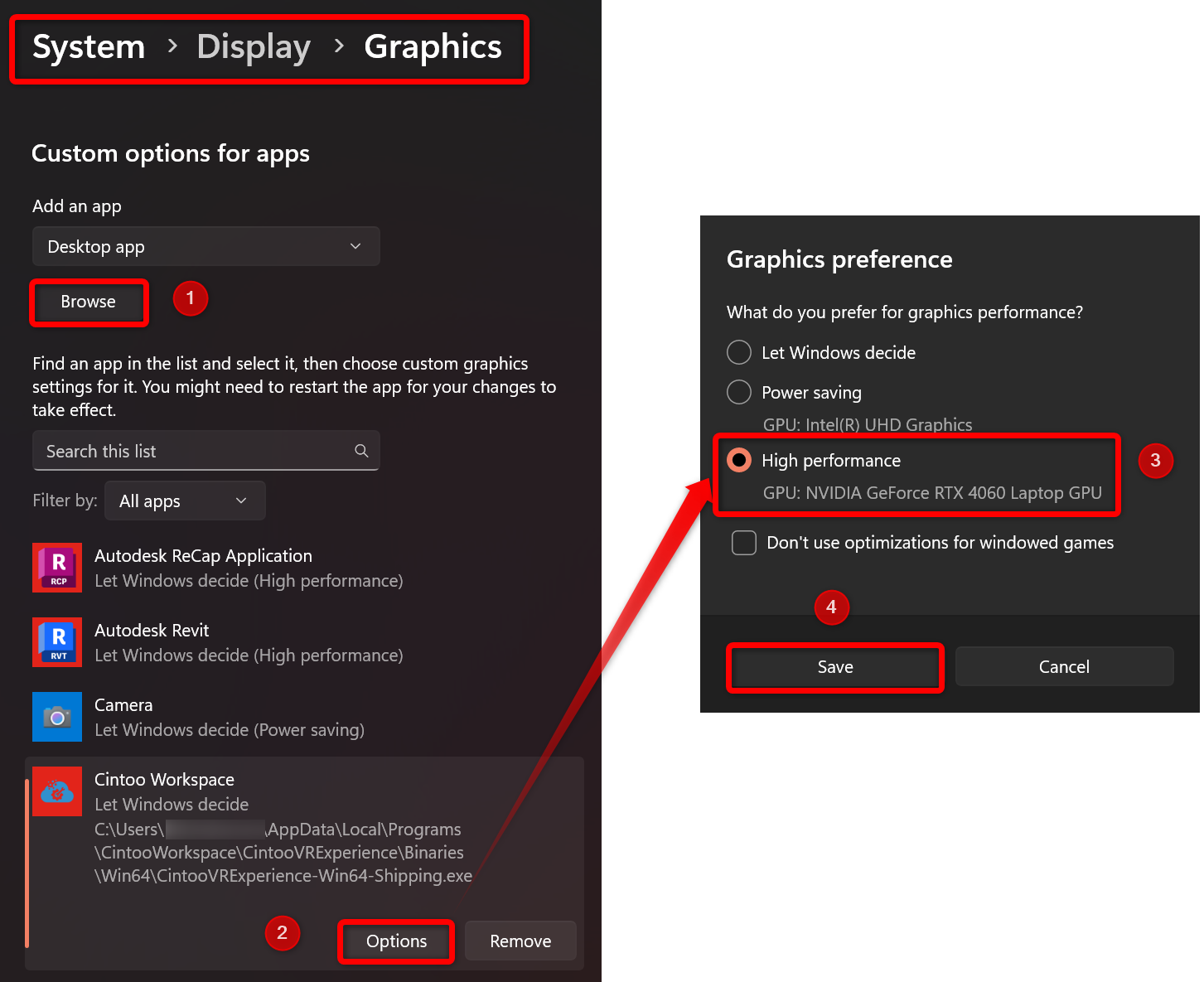
Audio (Voice Chat)
- Microphone - headset built-in microphone, USB or analog microphone
- Audio output - headphones or speakers, selectable in application audio settings
Subscriptions
Joining a session does not require a Collaborative subscription.
Igloo features require an active Igloo subscription, independently from Collaborative subscription.
Details on session workflows are in Multi-User Collaboration.
Tips to Increase Cintoo Workspace Application Performance
- Cintoo Workspace application must be the window "on top" of the other applications running.
- Why is it important:
- Resource prioritization. Operating system allocates more CPU, GPU and memory resources which allows the VR application to maintain high frame rates.
- VR focus and continuity. If another application intervenes it could lead to stuttering, tracking issues, disorientation, motion sickness or even a complete loss of control within VR environment.
- Performance stability. Stable timeframes provide VR comfort, immersion, and smooth user experience.
- How to ensure it:
- Minimize background applications. Close any unnecessary programs before launching Cintoo Workspace app (web browsers, chat applications, streaming services etc.)
- Full-screen mode. Run Cintoo Workspace application in true full-screen mode, not just a maximized window. It gives the application exclusive control over the display.
- Focus management. Avoid clicking outside the application window once it is running (especially if multiple screens are used).
- Why is it important:
- Set PC display to HD (vs. 4K)
- Why is it important:
- GPU workload reduction. Rendering a display at 4K resolution requires significantly more GPU than rendering HD.
- Performance headroom. Freeing up GPU resources that could be dedicated to the VR application.
- How to do it (Windows):
- Right click on Desktop and select Display settings.
- Under Display resolution from the dropdown menu select 1920 x 1080 (Recommended) or 1920 x 1200 if available instead of 4K resolution.
- Click Keep changes.
- Why is it important:
- Disable/disconnect external monitors
This allows to streamline the display setup and dedicate all available GPU resources to the primary task.
How to do it (Windows):
- Physically disconnect by unplugging HDMI, Display Port or USB-C cables connected to external monitors.
- In Display settings identify the monitors to disable, in Multiple displays dropdown menu select Show only on X or Disconnect this display.
- Set default OpenXR Runtime in Meta Quest Link app
OpenXR is an open standard for VR applications, providing common API for developers to write code that runs across different hardware. Setting the default OpenXR runtime tells your system which software should manage OpenXR calls from applications.
How to do it (Meta Quest Link app):
- In Meta Quest Link app navigate to Settings, then General tab
- Choose Set Meta Quest link as OpenXR Runtime option
- If prompted restart the application or PC for changes to take effect
Was this article helpful?
That’s Great!
Thank you for your feedback
Sorry! We couldn't be helpful
Thank you for your feedback
Feedback sent
We appreciate your effort and will try to fix the article