This guide serves as a comprehensive resource for Account Owners to set up and manage their Cintoo account effectively.
As an Account Owner, you are the first and highest-level user in your Cintoo account. You have full control over administrative user management, account ownership, and project access. This handbook will help you navigate key account-level tools, invite and manage administrative roles, transfer ownership when needed, and ensure seamless access across all projects.
From initial setup to ongoing account administration, this guide equips you with the knowledge and tools to manage your Cintoo account at the highest level. For the best experience, we recommend following the sections and steps in sequence to ensure a smooth setup.
This article describes actions that a user with Account Owner role can do in a Cintoo account. The main functionality for this role implies setting up users with Administrator and Project Manager roles, managing account ownership and managing its own access to any project in a Cintoo account.
TABLE OF CONTENTS
- Invite Administrators
- Invite Project Managers and Manage Their Access to Projects
- Transfer Account Ownership
- Add Me to All Current and Future Projects
Invite Administrators
Expand your administrative team by inviting new Administrators to your Cintoo account. As the Account Owner, you are the first user created for the account and are responsible for bringing additional Administrators on board to help manage the environment.
Follow the workflow described in Invite Administrators to add new users with Administrator role to your Cintoo account.
Note: additional Administrators can help manage users, projects, and account settings.
Invite Project Managers and Manage Their Access to Projects
Set up your project leadership by inviting Project Managers and configuring their level of access to specific projects. This ensures that the right people have the right permissions to manage day-to-day project activities.
- Follow the workflow described in Setting up Project Managers to invite users with Project Manager role.
- During setup, configure each Project Manager's level of access to individual projects as needed.
Transfer Account Ownership
When organizational changes require it, Account Owner can transfer ownership to another qualified user. This ensures continuity of account management without disruption.
Prerequisites:
- Only a user with Account Owner role can initiate a transfer.
- The receiving user must have an Administrator role in the same Cintoo account. To add new administrators follow Invite Administrators.
- The receiving user must not already be Account Owner of another Cintoo account.
Steps:
Follow the workflow described in Change Account Owner in Cintoo to complete the transfer.
Add Me to All Current and Future Projects
Gain instant access to every project in your account, both existing and any created in the future, with a single toggle.
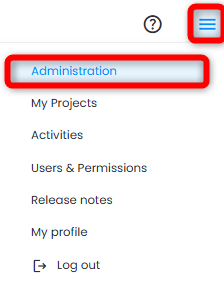
- Navigate to Administration menu from burger menu (☰) at the top right of the screen.
- Go to Subscriptions tab and locate Add me to all current and future projects toggle on the right side.
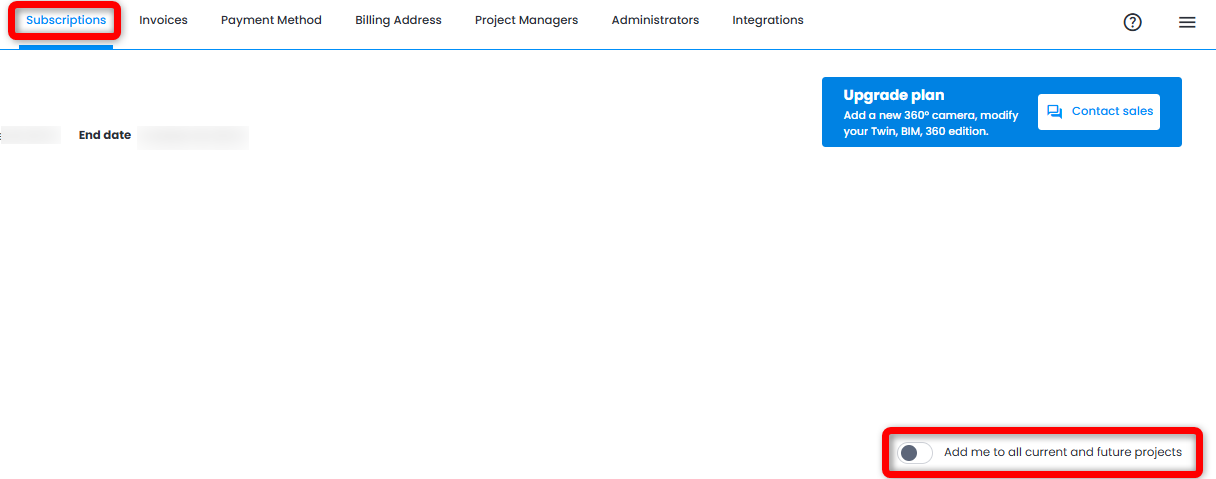
- Enable the toggle to:
- Get instant access to all current projects under the selected plan.
- Be automatically invited to any new project created in the future under that plan.
- Repeat this action for each plan in your Cintoo account if you have multiple subscriptions.
Note: this is especially useful for Account Owners who need visibility across all projects for oversight, auditing, or reporting purposes.
Was this article helpful?
That’s Great!
Thank you for your feedback
Sorry! We couldn't be helpful
Thank you for your feedback
Feedback sent
We appreciate your effort and will try to fix the article